Voicemailing is used with a mobile cellular phone.
You can get mobile phones from any mobile retail store, such as orange, vodafone or phones4u. There are more.
When you get a new voicemail it will tell you in a text message usually.
To get to your voicemail service, hold down the 1 key on your numberpad.
This will then call up your "Voice Mailbox".
An automated voice will then guide you through steps to listen to your messages.
Thanks
Tuesday, December 02, 2008

Tuesday, November 25, 2008
How to use msn
How To Use MSN Guide:
Using MSN Messenger is very easy and useful if you want to speak to your friends or family, it is an instant messaging service meaning the messages are setting within seconds.
To start you will need to go to start and locate your installed MSN (you should install it)
CLICK
When you open it, it will open a page similar where you can enter your credetials and chose whether you want to be remembered, then click sign in.
CLICK
Once signed in your screen will look somewhat similar to below. But yours will display a blank contact list. Mine is filled because i use it.
CLICK
Because your list is empty, you might want to add a contact, you can do this by clicking the Add icon in the top right corner, looks like this
Click it and then a form will pop up looking like this
CLICK
The form is pretty simple and speaks for itself. Fill the credentials in correctly. Then click Add Contact in the bottom right, make sure you typed all the details correctly.
Once you have added the person if they accept your invite, they will come online and there icon will turn green. You can now commense conversation.
The conversation window is fairly simple, you type a message in the box then click the big "Send" button.
CLICK
That is really all there is to instant messaging with msn.
Using MSN Messenger is very easy and useful if you want to speak to your friends or family, it is an instant messaging service meaning the messages are setting within seconds.
To start you will need to go to start and locate your installed MSN (you should install it)
CLICK
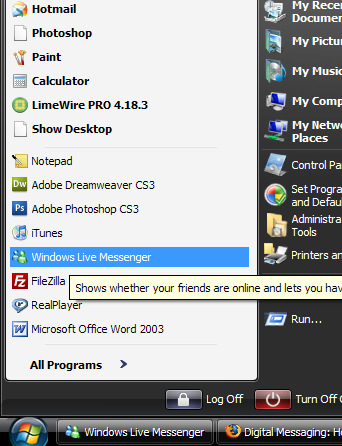
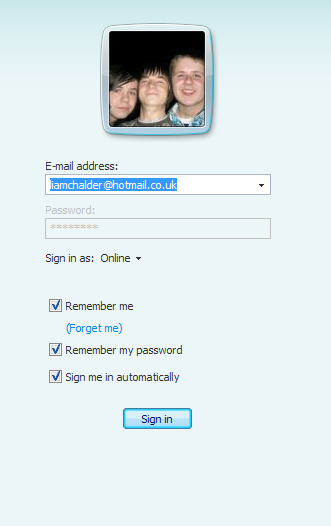
When you open it, it will open a page similar where you can enter your credetials and chose whether you want to be remembered, then click sign in.
CLICK
Once signed in your screen will look somewhat similar to below. But yours will display a blank contact list. Mine is filled because i use it.
CLICK
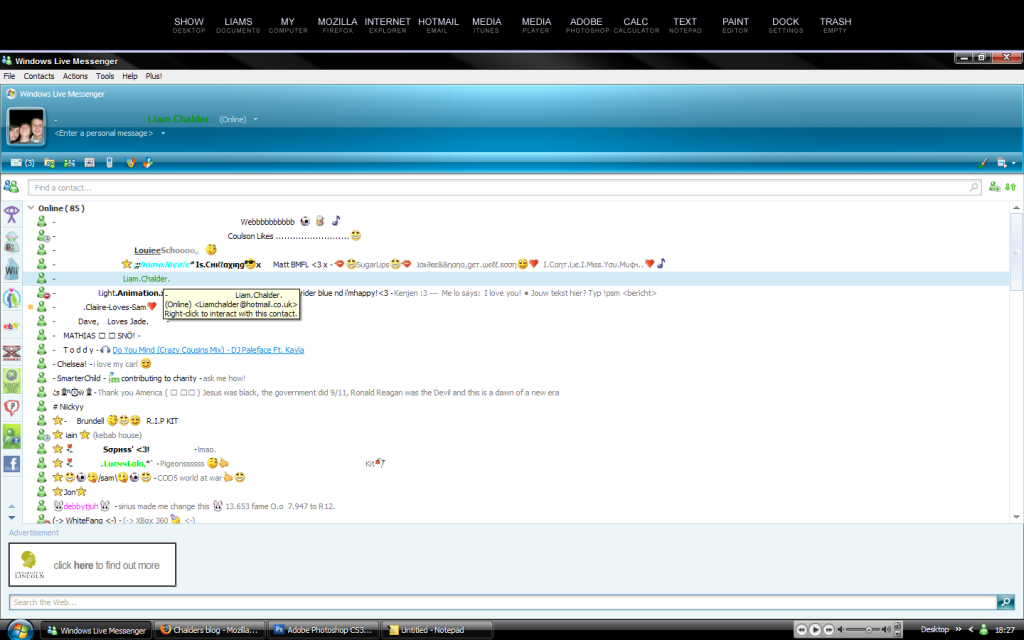
Because your list is empty, you might want to add a contact, you can do this by clicking the Add icon in the top right corner, looks like this
Click it and then a form will pop up looking like this
CLICK
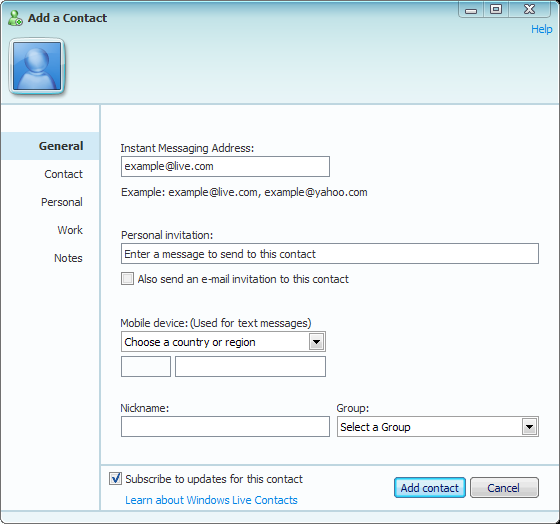
The form is pretty simple and speaks for itself. Fill the credentials in correctly. Then click Add Contact in the bottom right, make sure you typed all the details correctly.
Once you have added the person if they accept your invite, they will come online and there icon will turn green. You can now commense conversation.
The conversation window is fairly simple, you type a message in the box then click the big "Send" button.
CLICK
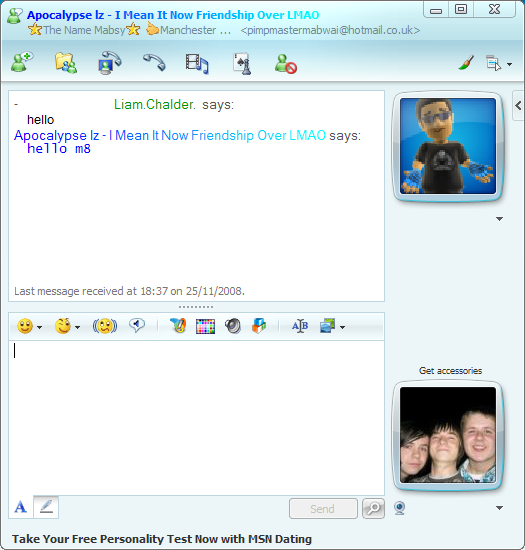
That is really all there is to instant messaging with msn.
Wednesday, November 19, 2008
How to email guide.
How To Email Guide:
Emailing can be useful if you want to contact family or friends who are a fair distance away so you can't conact them, for example the other side of the world.
There are a few types of way's to email such as using Yahoo, Googlemail or Hotmail. For the sake of this guide, i am going to use Hotmail, because its the most advanced.
You can start by signing up at Hotmail by going to this link it is really simple to sign up so im not going to go through that.
Once signed up, you'll be chosen to sign in, this page will look similar to the link below:
CLICK ME
You may then input your details and login, you will be redirected to the main page which will look somewhat like the link below:
CLICK ME
The homepage is easily accessible and usable, and is updated regularly. Several options are displayed on the page, you can read your emails from your "Inbox" or "Junk Email" folder. Or you may want to send a "New" message, the "New" link can be found just to the right of "Hotmail" in big letters. You can "Delete" messages or you can "Mark" and "Move" them, all these links are easy to find and shouldn't be too much trouble.
Suppose you click on "New" to compose an e-mail message, you would redirected to a page similar to the link below:
CLICK ME
You can click on the button "To:" this will make a drop down box appear which would usually list all the contacts you have, but you only just signed up so you won't have any. The image is pretty self explanatory, for the contact your going to email, and the subject. In the bottom box you type your message, with lots of styling buttons similar to Microsoft Word.
Once you have finished composing your e-mail, you may want to attach a picture or a small video or something of you to show a friend, to find the attach button it is located just above your email and "From:" box. Once you have found it, click on it and another box will appear below your subject, click on browse to find your image or file. It should look similar to the one below:
CLICK ME
Once you have your file, click on Open and it will automatically begin uploading it (note there is a file size limit of 10.0 MB). Once uploaded you can go ahead and send your message by clicking "Send" above your email.
If you have sent it correctly you will be redirected to a page similar like this, where a comfirmation will be displayed:
CLICK ME
As you can see it says that "Liam" is already a contact, but in the case you have no contacts you have the option to add the contact to your hotmail contact list. You type their first name and last name then click "Add". Fairly straight forward. If however it says your message was sent but then you get an email from this address postmaster@mail.hotmail.com then the email will contain an error saying that your email failed to send, most often because the email you typed is wrong.
Well done you mastered the basics for emailing.
Other Information:
What is Cc?, Cc is shorthand for Carbon copy. If you add a recipient's name to this box in an Outlook e-mail message, a copy of the message is sent to that recipient, and the recipient's name is visible to other recipients of the message.
What is Bcc?, Bcc is shorthand for Blind carbon copy. If you add a recipient's name to this box in a mail message, a copy of the message is sent to that recipient, and the recipient's name is not visible to other recipients of the message. If the Bcc box isn't visible when you create a new message, you can add it.
Emailing can be useful if you want to contact family or friends who are a fair distance away so you can't conact them, for example the other side of the world.
There are a few types of way's to email such as using Yahoo, Googlemail or Hotmail. For the sake of this guide, i am going to use Hotmail, because its the most advanced.
You can start by signing up at Hotmail by going to this link it is really simple to sign up so im not going to go through that.
Once signed up, you'll be chosen to sign in, this page will look similar to the link below:
CLICK ME

You may then input your details and login, you will be redirected to the main page which will look somewhat like the link below:
CLICK ME

The homepage is easily accessible and usable, and is updated regularly. Several options are displayed on the page, you can read your emails from your "Inbox" or "Junk Email" folder. Or you may want to send a "New" message, the "New" link can be found just to the right of "Hotmail" in big letters. You can "Delete" messages or you can "Mark" and "Move" them, all these links are easy to find and shouldn't be too much trouble.
Suppose you click on "New" to compose an e-mail message, you would redirected to a page similar to the link below:
CLICK ME

You can click on the button "To:" this will make a drop down box appear which would usually list all the contacts you have, but you only just signed up so you won't have any. The image is pretty self explanatory, for the contact your going to email, and the subject. In the bottom box you type your message, with lots of styling buttons similar to Microsoft Word.
Once you have finished composing your e-mail, you may want to attach a picture or a small video or something of you to show a friend, to find the attach button it is located just above your email and "From:" box. Once you have found it, click on it and another box will appear below your subject, click on browse to find your image or file. It should look similar to the one below:
CLICK ME

Once you have your file, click on Open and it will automatically begin uploading it (note there is a file size limit of 10.0 MB). Once uploaded you can go ahead and send your message by clicking "Send" above your email.
If you have sent it correctly you will be redirected to a page similar like this, where a comfirmation will be displayed:
CLICK ME

As you can see it says that "Liam" is already a contact, but in the case you have no contacts you have the option to add the contact to your hotmail contact list. You type their first name and last name then click "Add". Fairly straight forward. If however it says your message was sent but then you get an email from this address postmaster@mail.hotmail.com then the email will contain an error saying that your email failed to send, most often because the email you typed is wrong.
Well done you mastered the basics for emailing.
Other Information:
What is Cc?, Cc is shorthand for Carbon copy. If you add a recipient's name to this box in an Outlook e-mail message, a copy of the message is sent to that recipient, and the recipient's name is visible to other recipients of the message.
What is Bcc?, Bcc is shorthand for Blind carbon copy. If you add a recipient's name to this box in a mail message, a copy of the message is sent to that recipient, and the recipient's name is not visible to other recipients of the message. If the Bcc box isn't visible when you create a new message, you can add it.
Subscribe to:
Comments (Atom)